Crayonic Credential Manager - Administrator Manual
This manual is intended for system administrators responsible for configuring the Crayonic Credential Manager (CCM), managing users, and overseeing system security.
Table of Contents
1. Admin Dashboard
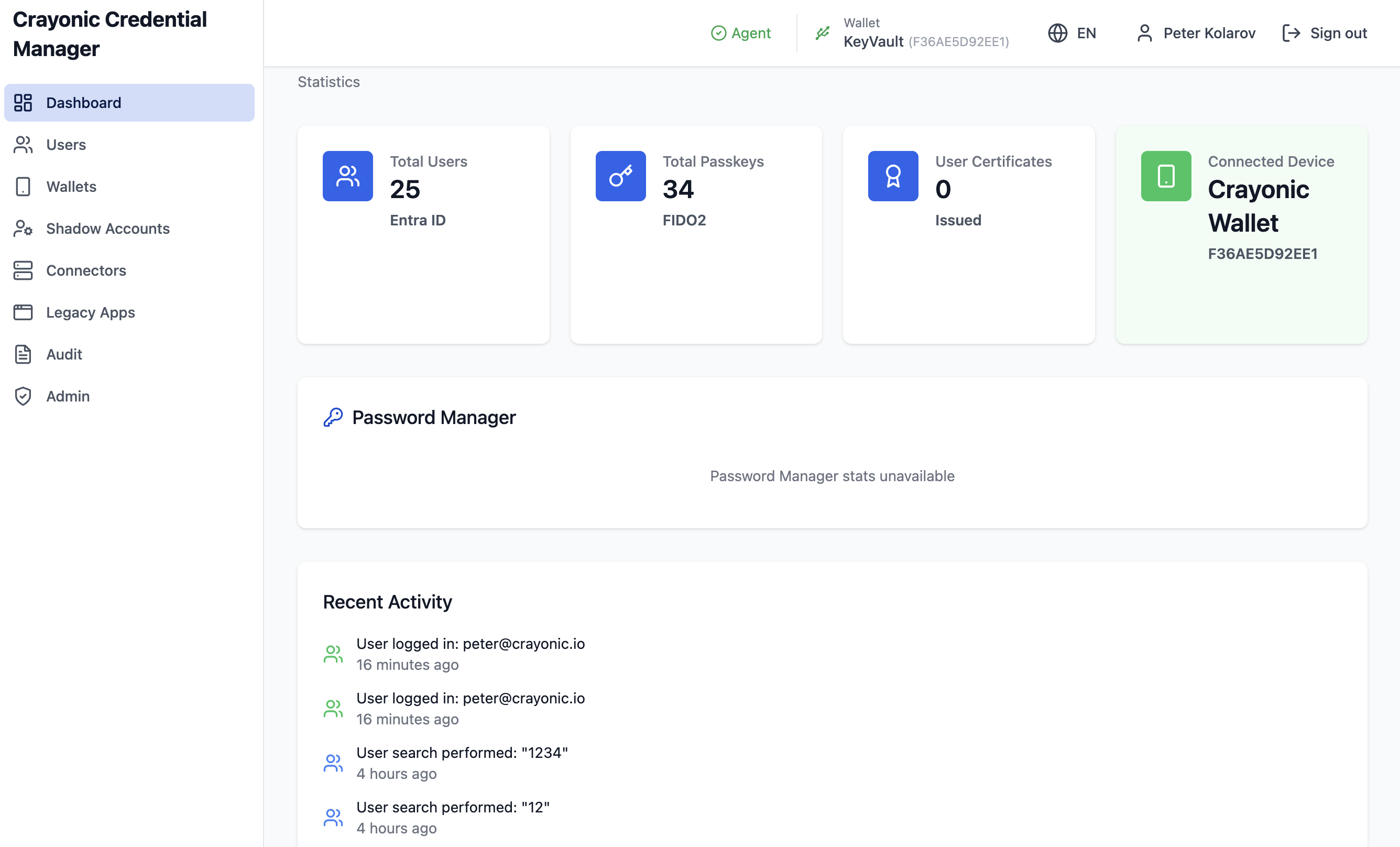
Upon logging in with an administrator account, the Dashboard presents a high-level overview of the system's health and statistics.
Key Metrics
- Total Users: Count of users in the connected Entra ID tenant.
- Total Passkeys: Total number of FIDO2 credentials registered in the tenant.
- User Certificates: Number of issued certificates (if PKI integration is active).
- Connected Device: Status of the locally connected Crayonic KeyVault or administrative hardware token.
Recent Activity
The dashboard lists recent system events, such as user logins, passkey creations, and errors. - Recent Errors: Highlights critical issues like failed synchronizations or agent disconnections.
2. User Management
The Users page is the central hub for managing identities and their credentials.
Navigation: Click Users in the left sidebar.
Searching Users
You can search for users by name or User Principal Name (UPN). - Extended Search: Check "Include Extended Search" to perform a deeper search that matches against passkey metadata (e.g., finding a user by the serial number of their registered key). Note: This may be slower.
Managing User Passkeys
Click the Key Icon ("View Passkeys") next to a user to open their credential management modal. This view consolidates credentials from three sources: 1. Entra ID: The official FIDO2 methods registered in Microsoft Entra ID. 2. Wallet (Agent): Credentials stored on the locally connected hardware device matching the user. 3. Database: Local records of public keys used for internal verification (e.g., for approval signatures).
Actions: - Create Passkey: Initiates the flow to register a new FIDO2 credential for the user on the connected hardware device. - Delete: Remove a credential from specific stores.
Creating Users
If enabled, click Create User to provision a new identity in Entra ID directly from CCM. You will need to provide: - Display Name, UPN, Given Name, Surname. - A temporary password (auto-generated or manual).

3. Wallet Management
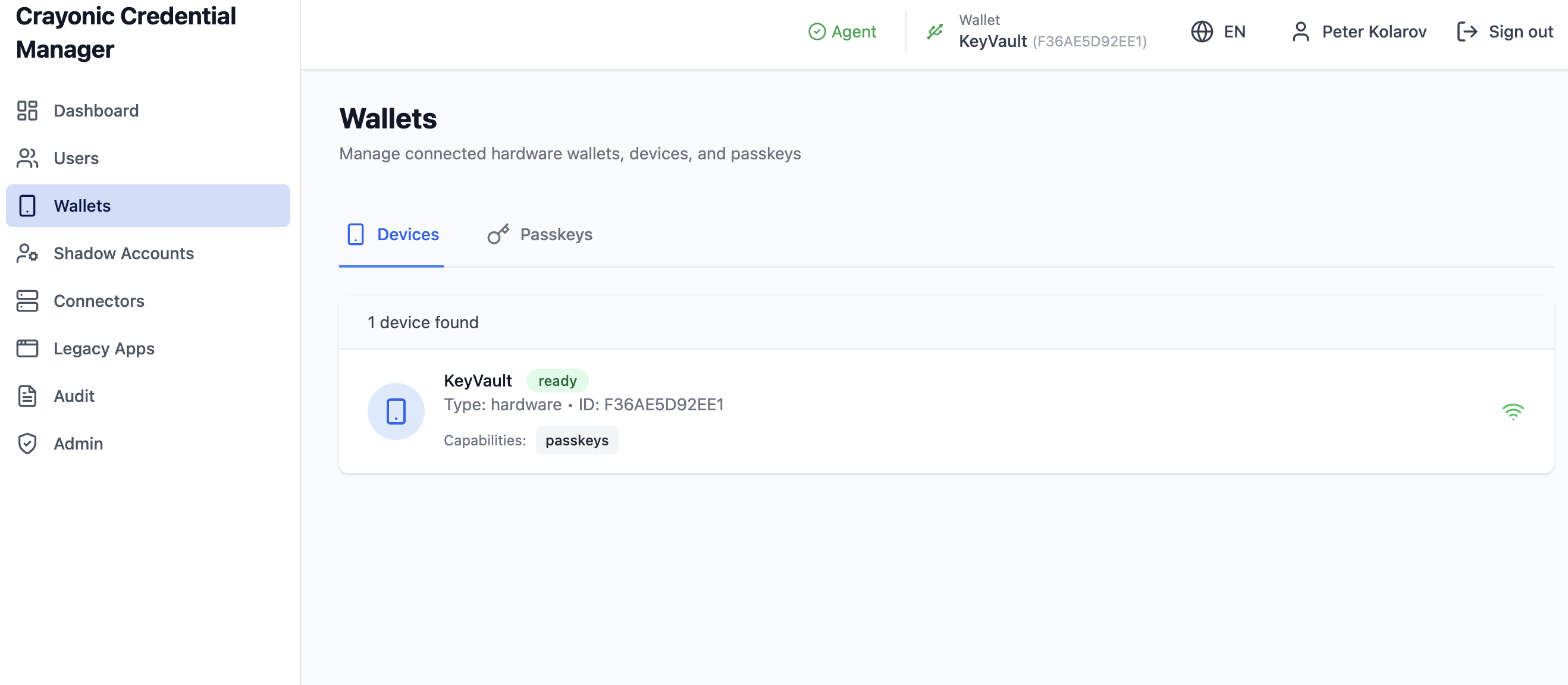
The Wallets page provides direct management of the connected hardware infrastructure (Crayonic Agents).
Navigation: Click Wallets in the left sidebar.
Devices Tab
Lists all hardware devices currently visible to the Crayonic Agent. - Status: Connected, Ready, Offline. - Capabilities: Supported features (e.g., FIDO2, PIV).
Passkeys Tab
Lists all resident credentials stored on the connected hardware device, regardless of which user they belong to. - This is useful for auditing hardware tokens or wiping credentials from a device before re-issuing it. - Delete Passkey: Permanently removes the private key from the hardware.
4. Audit Logs
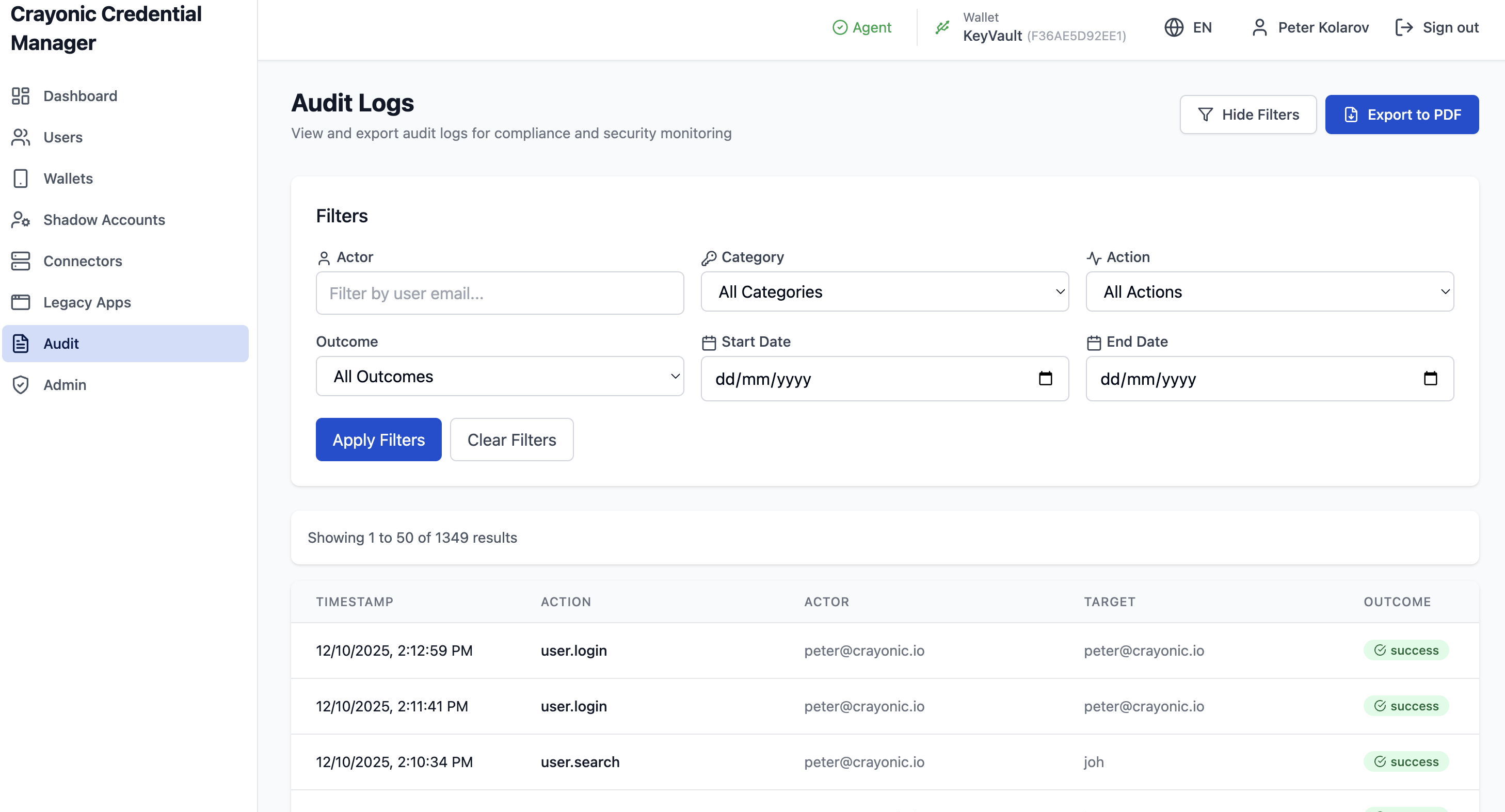
The Audit page provides a comprehensive trail of all actions performed within the system.
Navigation: Click Audit in the left sidebar.
Filtering Logs
You can filter logs to find specific events:
- Actor: The user who performed the action.
- Category:
- CCM: Core credential management events (creation, deletion, login).
- PWM: Password Manager events (legacy app injection, shadow accounts).
- Action: Specific event type (e.g., passkey.created).
- Outcome: Success or Failure.
- Date Range: Start and End dates.
Exporting
Click Export PDF to generate a downloadable report of the current filtered view, suitable for compliance archiving.
5. System Configuration
The Admin Settings page allows you to configure the behavior of the CCM backend and frontend components.
Navigation: Click Admin (Shield Icon) in the bottom of the sidebar.
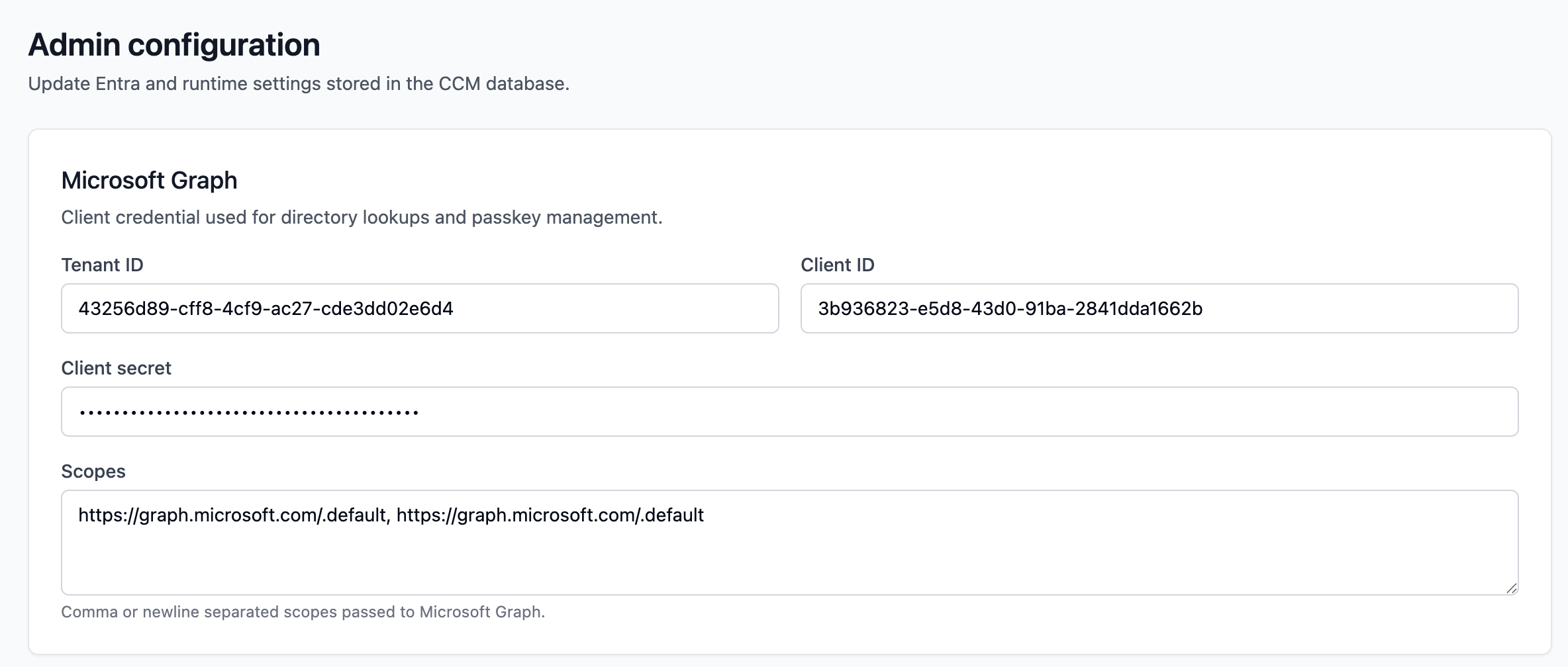
Graph API
Configure the connection to Microsoft Entra ID.
- Tenant ID, Client ID, Client Secret: Credentials for the App Registration.
- Scopes: Permissions requested (e.g., User.Read.All, Fido2.ReadWrite.All).
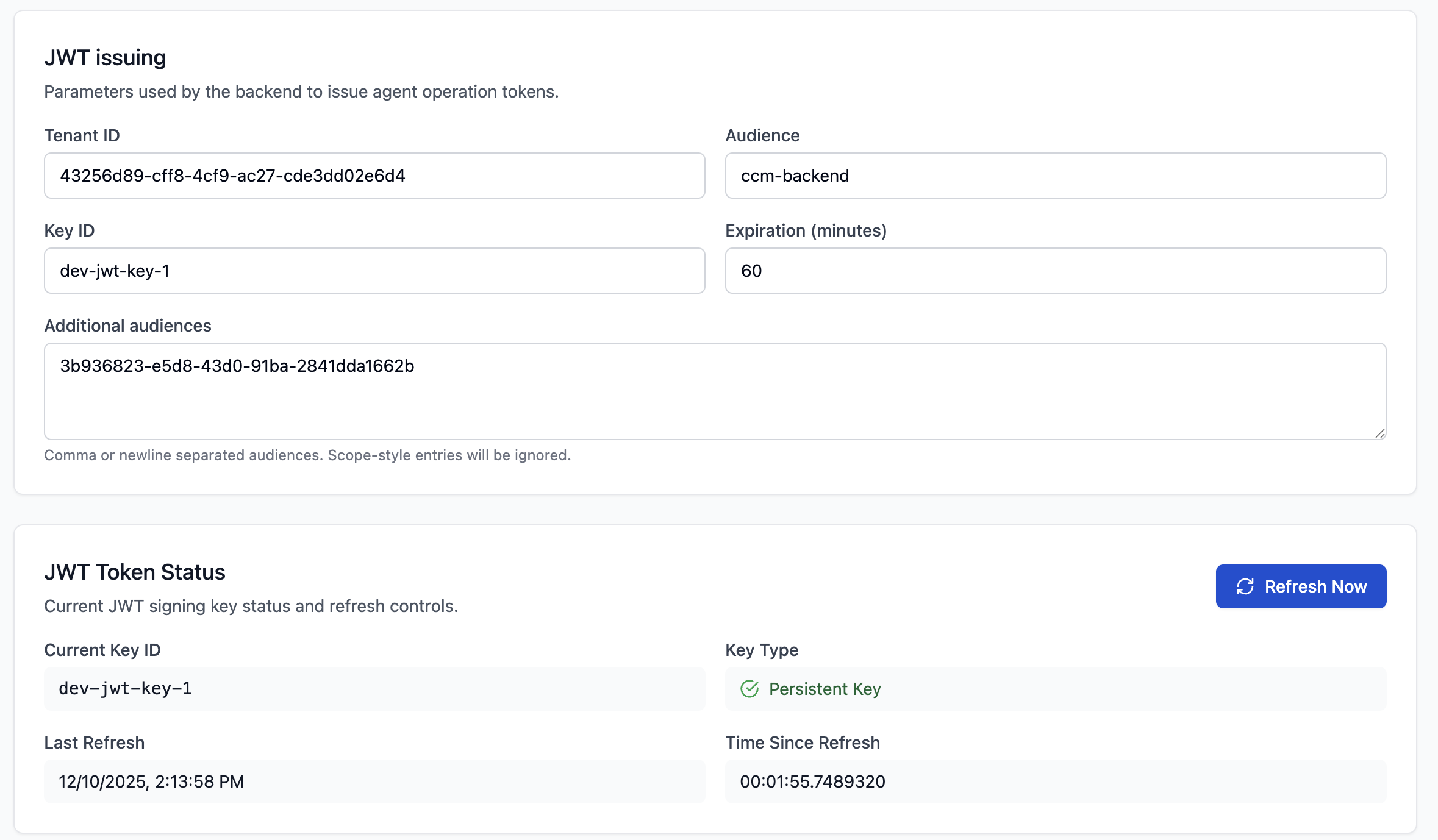
JWT Settings
Configure the security tokens issued by the CCM backend. - Token Expiration: How long admin sessions last. - Key Rotation: View current signing keys and force a key rotation if necessary. - Ephemeral Keys: Indicated by a yellow warning. Means keys are generated on startup and lost on restart (Dev mode). - Persistent Keys: Indicated by a green check. Keys are loaded from disk.
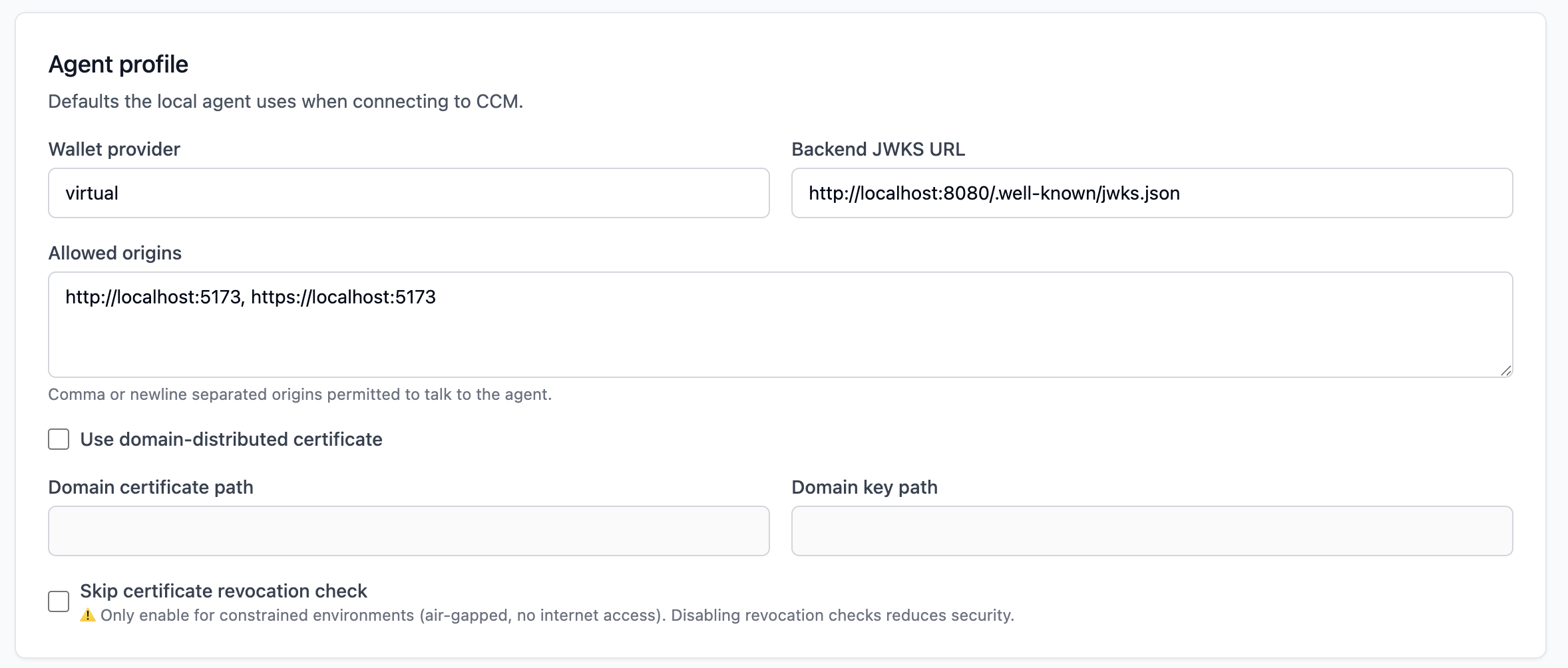
Agent Settings
Control how the backend communicates with the local Crayonic Agent. - Allowed Origins: Whitelist of domains allowed to talk to the agent. - Certificate Settings: Configuration for the local TLS server (optional).
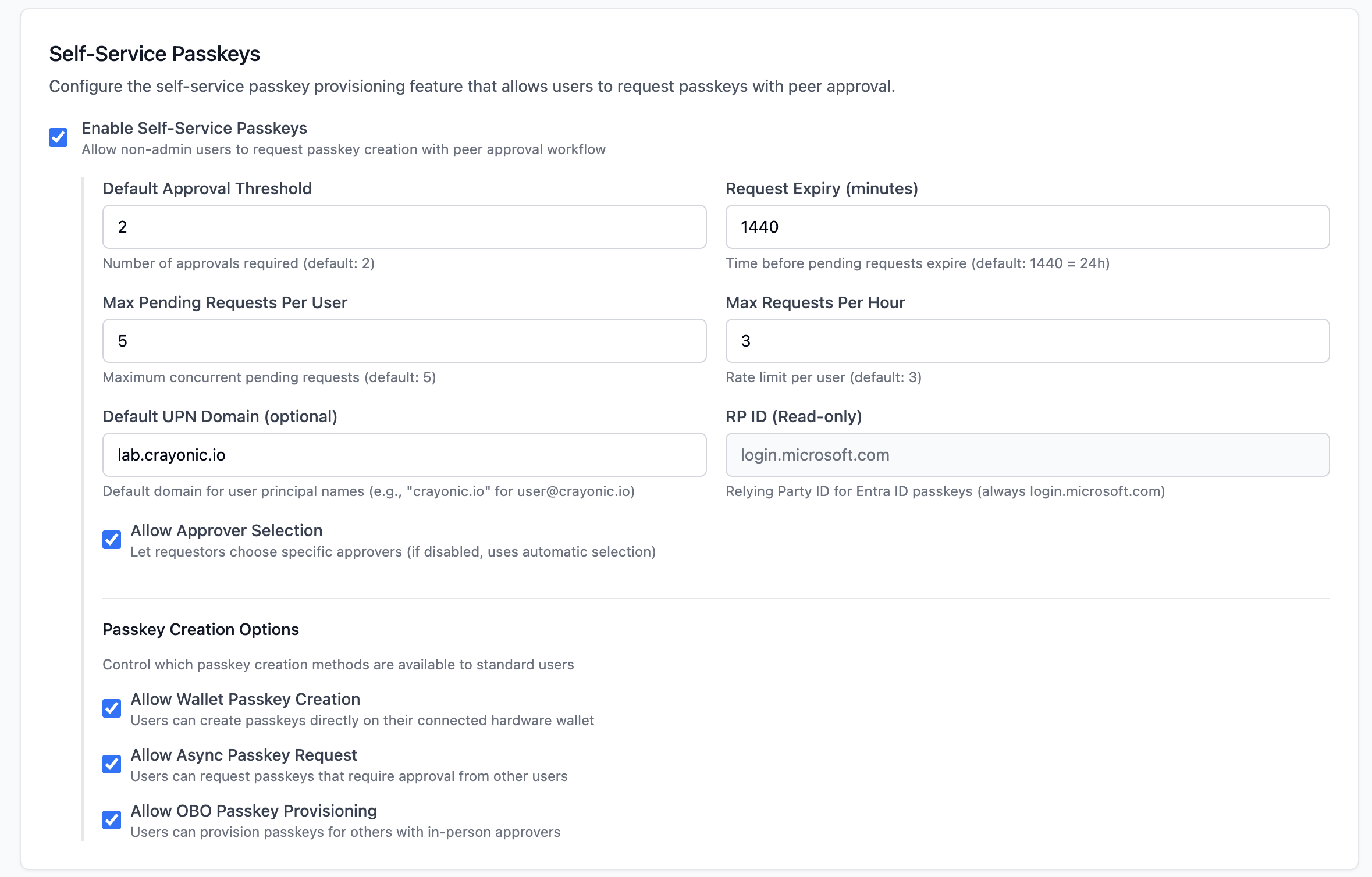
Self-Service Configuration
Define rules for the user request workflow.
- Enable/Disable: Toggle the entire self-service feature.
- Threshold: Default number of approvals required for a request.
- Expiry: How long requests remain pending (in minutes).
- Policies:
- Allow Wallet Passkey Creation: Let users provision keys on hardware.
- Allow Async Requests: Let users request keys even if they aren't present (requires approval).
- Allow OBO Provisioning: Allow admins/managers to request on behalf of others.
-
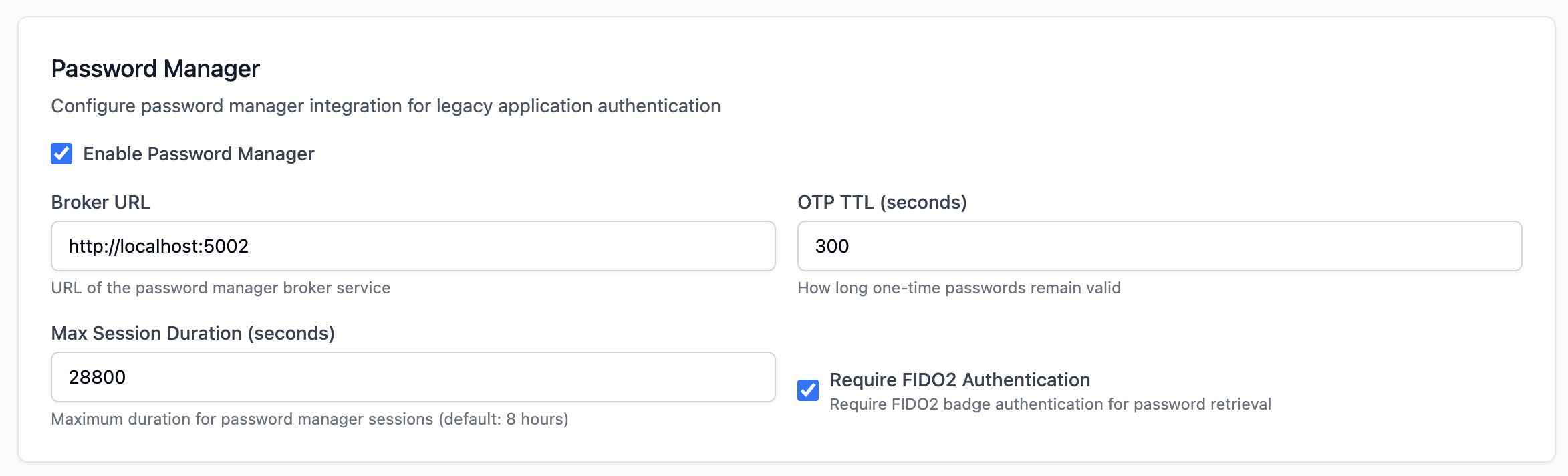
Password Manager (PWM)
Configure integration with the Legacy Password Manager module. - Broker URL: Address of the PWM Broker service. - Session Duration: Time-to-live for legacy app sessions. - Require FIDO2: Enforce hardware auth for password injection.
6. Password Management
The Password Manager (PWM) module allows CCM to manage and inject credentials for legacy applications that do not support modern authentication protocols like FIDO2. This enables a passwordless experience for end-users even on older systems.
Navigation: Click the icons in the sidebar for Shadow Accounts, Connectors, or Legacy Apps.
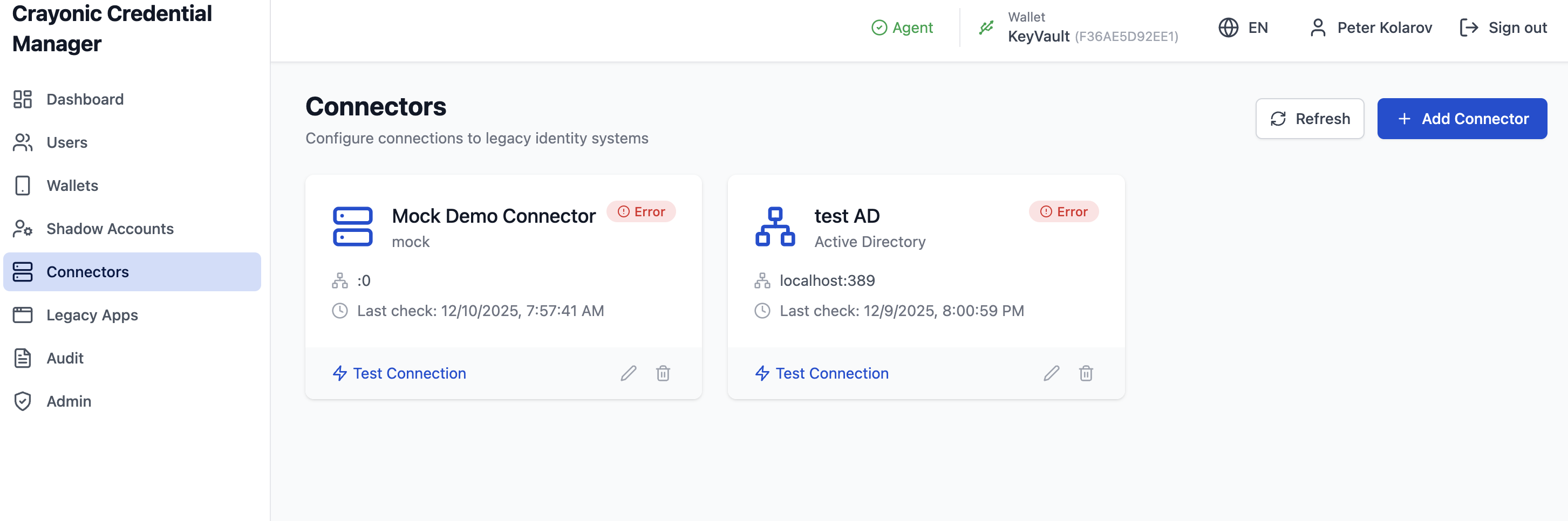
Connectors
Connectors serve as bridges between CCM and external directory services or databases where legacy credentials are stored.
Supported Types: - Active Directory / LDAP - SQL Server / Oracle DB - SAP - Custom APIs
Actions: - Create: Add a new connector configuration (Host, Port, Type). - Test: Verify connectivity to the backend service.
Shadow Accounts
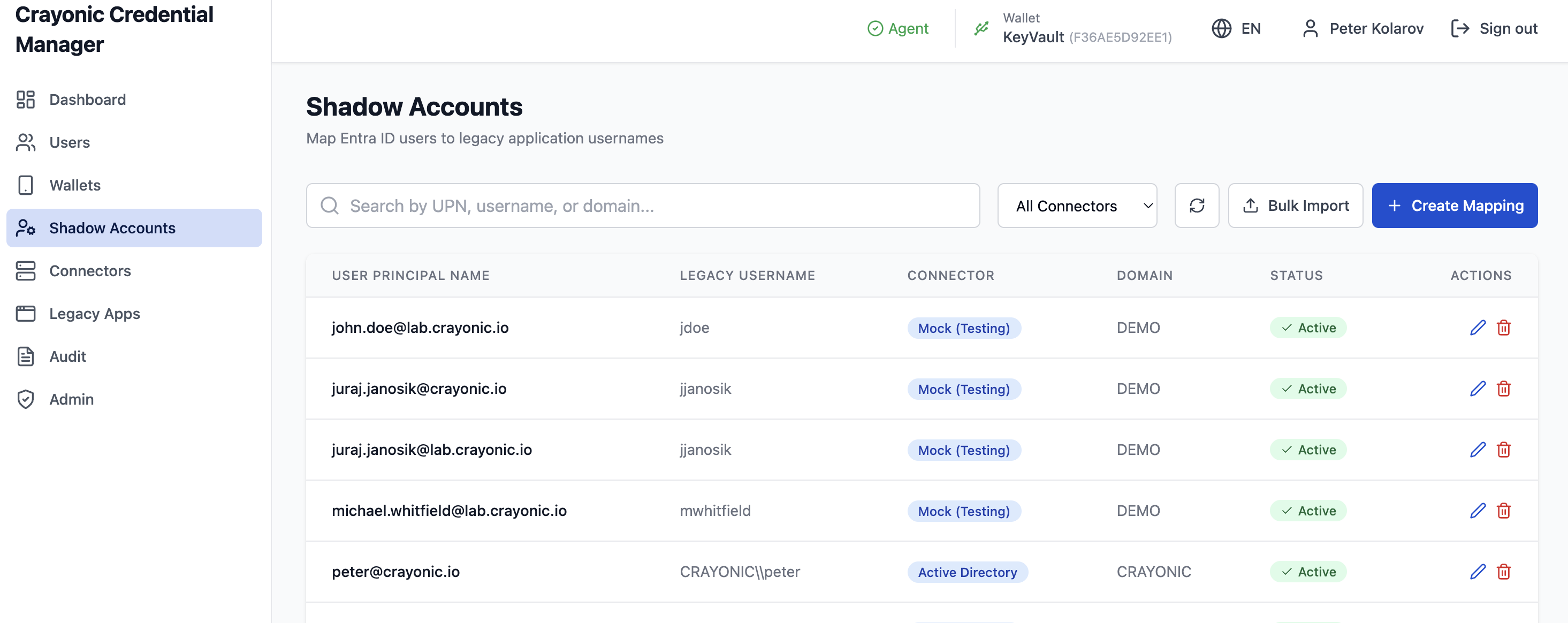
Shadow accounts link a CCM user (identified by their Entra ID UPN) to a legacy username in a specific domain.
Fields:
- User UPN: The modern identity (e.g., john.doe@company.com).
- Legacy Username: The username expected by the legacy app (e.g., CORP\jdoe).
- Connector: The backend system where this account exists.
- App ID: (Optional) Restrict this mapping to specific applications.
Bulk Import: You can upload a CSV file to create multiple shadow account mappings at once.
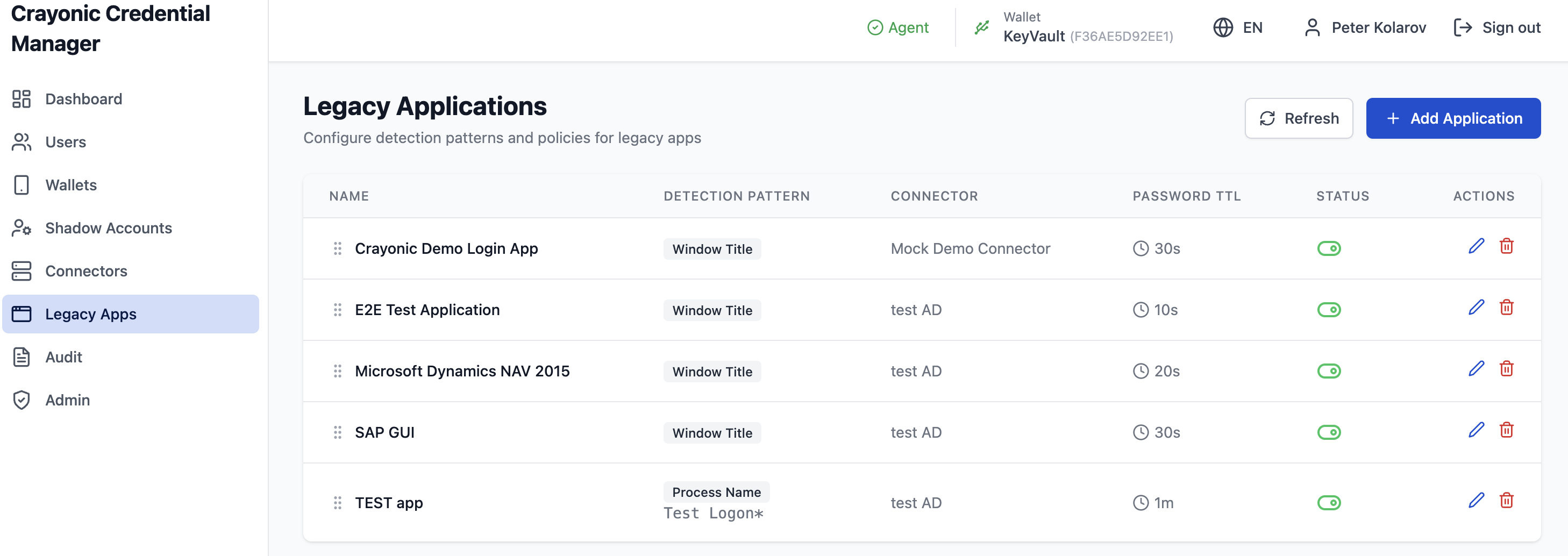
Legacy Apps
This section defines the client-side applications that the Crayonic Agent should detect and manage.
Detection Patterns:
- Window Title: Matches the text in the application window's title bar.
- Process Name: Matches the executable name (e.g., saplogon.exe).
- URL: Matches browser URLs (for web-based legacy apps).
Configuration: - Connector: Which backend connector validates credentials for this app. - TTL (Time-To-Live): How long a password injected into this app remains valid before requiring re-authentication.