Crayonic Credential Provider
Overview
The Crayonic Credential Provider puts a tile for each badge near the machine on the Windows sign-in screen and lock screen. The user selects their tile, or holds their badge to the Crayonic Bridge, and Windows signs them in with the badge: with its smart card certificate on a domain machine, or with its passkey on a Microsoft Entra machine.
The provider is part of the Crayonic Agent. The Agent's installer puts it on the machine and registers it with Windows, and every Agent update brings the matching provider. There is nothing separate to download or install. The Agent's settings window calls it CP3, to tell it apart from the earlier standalone providers (CP1 and CP2), which are obsolete.
Where this fits
The Credential Provider is the on-screen half of badge sign-in. It is installed and updated with the Crayonic Agent. The Crayonic Bridge brings the badge to the workstation, and the Agent tells the provider which badges are nearby, what to call them and how it is configured. See Solution Architecture. This page describes the provider in Crayonic Agent 1.0.625 and later; 1.0.633 is the recommended build.
Part of the Crayonic Agent
- Installed with the Agent. The Agent's MSI copies
CrayonicCredentialProvider3.dllintoSystem32and registers it as a credential provider under its own ID,{D41F8C90-3E6B-4A72-9C15-5B2E7A0D6F31}. Installing the Agent needs administrator rights. - Updated with the Agent. Every Agent build includes the provider, built with the same build number, so the provider follows the Agent's update policy: the newest build of its channel (STABLE unless you set another), a pinned version, or no automatic updates.
- Driven by the Agent. The provider runs inside the Windows logon screen. Over a local named pipe that only the system and administrators can open, the Agent tells it which badges are nearby, what to call them, which picture to draw and which language to use. The Agent writes the provider's settings to the registry, where the provider reads them. The pipe carries no credentials and no keys, and by default a badge's Bluetooth address is not sent: the picture is drawn from a hash of it.
- Configured through the Agent. Its settings come from CDM, from the Agent's settings window or from Group Policy. See Settings.
- Replaces the old provider. The Agent's settings window detects an earlier Crayonic provider and removes it with a button. See Badge Sign-in Setup, step 3.
What it looks like
The provider adds its tiles next to the tiles Windows already shows: password, PIN, security key and the tiles of other providers. It never hides or replaces them.
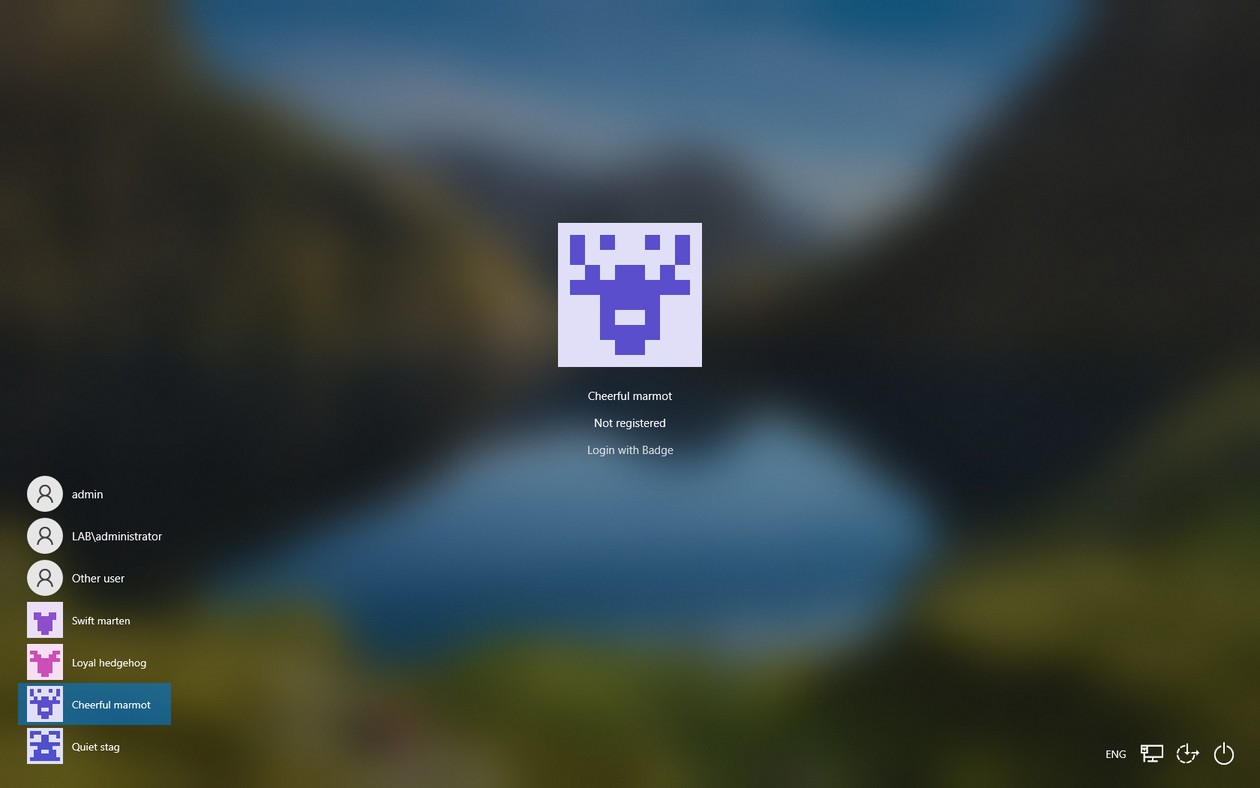
Each badge tile shows:
- A picture that belongs to that badge (below).
- A name for the badge's user (below).
- A second line: the account, as
DOMAIN\usernameor the user's UPN, or Not registered for a badge nobody has named. - A link on the selected tile, which says what clicking it does: Login with Badge, Connect this Badge, Disconnect Badge or Move this Badge to the active slot.
- A status line on the selected tile, with the current step of the sign-in or the reason it failed.
The tile has no password box and no PIN box. Nothing is typed on the PC.
The badge's picture
Every badge gets its own small creature, drawn from a hash of the badge's Bluetooth address. The hash decides its shape (horns, antlers, ears, arms, legs and so on) and its colour. The same badge shows the same creature on every machine, so users learn to recognise their own tile.

The name on the tile
The Agent names each tile from the first of these that it knows:
- The name in CDM. The badge's label in CDM, or else its assigned owner (
DOMAIN\username, or the user name or UPN). The Agent keeps the names in a local cache, so the logon screen never waits for the network. While CDM is reachable, the cache is refreshed every hour. - What the badge itself presents. With Name from the badge's credential on (the default), a badge that CDM has no name for is named from its smart card certificate (its name and UPN) once the Agent has read the certificate on this machine, or from the account of the badge's last passkey sign-in on this machine.
- A generated name. Otherwise the tile gets a two-word name such as "Swift fox", made from the badge's address, with Not registered underneath. It is the same on every machine that uses the same logon-screen language. It helps people tell tiles apart, but it does not identify anyone.
The Name on the tile setting chooses how much of a person's name is shown: the full name, the first name and initial, the badge's label, or no name. By default, the tiles do not show the badge's Bluetooth address or signal strength.
When there is no badge to show
When badge sign-in is on but no badge tile can be shown, a single Crayonic tile says why. It never signs anyone in.
| Situation | The tile says |
|---|---|
| The Agent is not running yet | Crayonic service is starting…, Please wait a moment |
| No Bridge is plugged in | Connect the Crayonic Bridge, No Bridge detected on this computer |
| The Bridge is plugged in but not ready | The Bridge is starting up… |
| The Bridge is ready, but no badge is close enough for a tile | Hold your Badge to the Bridge, Searching for nearby Badges… |
| The Agent cannot tell the Bridge's state | Connect your Crayonic Badge |
Progress on the tile
During a sign-in the status line of the selected tile shows each step. For Entra FIDO:
- Starting Badge sign-in...
- Contacting your organization...
- Scan your finger or enter the PIN on your Badge
- Badge verified - signing you in...
For a smart card sign-in the tile shows Reading certificates…, then Badge verified - signing you in....
While the sign-in runs, the link says Cancel. Once the badge has asked for the fingerprint or PIN, it says Try again instead. When a sign-in fails, the status line says what happened in words that point to the badge, for example The Badge dropped out of the sign-in. Reconnect it and try again. or Another Badge took the reader. Try again.
Optional status picture
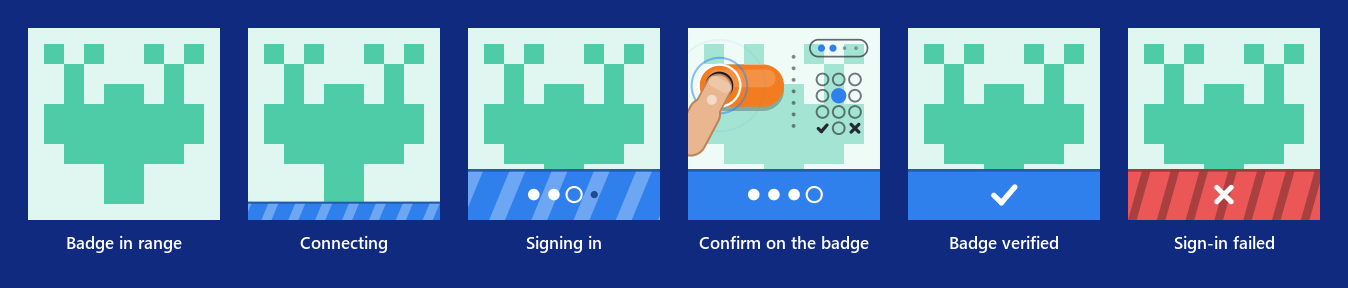
The Tile picture setting can also draw the sign-in on the badge's picture. It is Off by default, and the setup presets do not turn it on, so by default a tile shows only the creature. Set it to Static or Animated to add a band along the bottom of the picture:
- a thin blue underline while the badge connects (diagonal stripes, rolling when Animated) and once it is connected (plain);
- a blue band with four dots during a sign-in, one dot for each step;
- the badge and the keypad side by side when the badge asks for a fingerprint or PIN;
- a white tick when the badge is verified;
- a red band with a cross when the sign-in failed, kept for up to 10 seconds;
- a grey underline while the badge is released.
The band covers only the bottom of the picture, so the creature stays recognisable. Only while the badge asks for a fingerprint or PIN does the creature fade behind the picture of the badge and keypad. Every state also has its own shape or movement, so it can be told apart without relying on colour. The picture matters most on tiles nobody has selected: Windows shows the status line only on the selected tile.

Languages
The tiles are in English, Slovak, Czech or Ukrainian. The Logon screen language setting chooses the language; if it is not set, the tiles follow the language Windows is installed in, and English otherwise. A change shows at the next sign-in or lock screen.
Benefits
- Nothing separate to install or update. The provider comes with the Agent's MSI and is updated with every Agent update. The standalone providers were installed with a script or their own MSI and updated by hand.
- A tile for each nearby badge, easy to recognise. Each tile has the badge's own picture and the user's name, from CDM or from the badge itself. Badges far from the Bridge are left out, and the number of tiles is limited (5 by default).
- One tile does the whole sign-in. The tile connects the badge and signs the user in. For Entra FIDO it runs the Microsoft Entra passkey sign-in itself, with the same Windows component as Windows' own security-key tile. Users do not have to switch to the Security key option, and the logon screen is never restarted.
- No PIN typed on the screen. With a smart card sign-in, the badge unlocks its certificate itself, so no PIN dialog appears.
- Starts when the badge arrives. When a badge arrives at the Bridge while the sign-in screen is showing, its tile is selected and the sign-in starts without a click. A smart card sign-in starts this way only if the badge was held right at the Bridge. It does not start for a badge that was already connected when the screen appeared, when several badges arrive at once, after the user pressed Cancel, or while another sign-in is running. With Entra FIDO the user still confirms on the badge with a fingerprint or PIN.
- Says what is happening. A waiting tile says whether the Agent, the Bridge or a badge is missing. A sign-in shows each step, and a failure explains itself in badge terms instead of Windows' generic smart card messages. In an Entra FIDO sign-in, short radio or Bridge errors are retried (3 attempts by default); a cancelled sign-in is not.
- Safe defaults. Badge sign-in is off until it is turned on. Once the Agent has the change (within a minute for a settings document), turning badge sign-in on or off reaches an open logon screen within about a second. The provider only adds tiles: Windows' own tiles stay. It hands Windows a credential only when the badge has produced a complete one, and it never retries a sign-in that Windows rejected, so it cannot use up failed-logon attempts by itself.
- Locks when the badge leaves. After a sign-in on a badge tile, the Agent watches that badge and locks the computer when it leaves the Bridge (see Walk-away lock).
- Configured with or without CDM. The same settings come from CDM, from the Agent's settings window or from a Group Policy document. The settings window has a preset for smart card and one for Entra FIDO, and checks what the machine still needs.
- Sign-ins visible in CDM. With Cloud Sync on, sign-ins are reported to CDM, failed ones included: what started each one (a tile click, the badge arriving, or a retry), how long each step took and how it ended. With Cloud Sync off, nothing is sent.
- Optional badge-to-account check. For Entra FIDO, the provider can compare the account a badge signs in to with the owner assigned in CDM. By default it only logs a mismatch; set to enforce, it refuses the sign-in before the badge asks the user, with This Badge is assigned to a different account. Sign in with your own Badge.
Compared with the old provider
| Old standalone provider (CP1, CP2, as released up to 2025) | Provider in the Crayonic Agent (CP3) | |
|---|---|---|
| Install | a script (2023) or its own MSI (2024 on) | part of the Agent's MSI |
| Updates | by hand | with the Agent's updates |
| Settings | no central settings | CDM, the Agent's settings window or Group Policy; turned on and off on an open logon screen |
| Sign-in methods | smart card only | smart card or Entra FIDO, one per machine |
| Tiles | one per certificate on the badge in the reader | one per nearby badge, with picture, name and status |
| No badge | a fixed tile in Slovak | a tile that says what is missing, in the language set for the logon screen |
| Walk-away | the Smartcard Removal Policy service, which disconnected the session; it does not work with current Bridges | the Agent locks the computer; lock, log only, or off |
| Reporting | none | sign-ins reported to CDM with Cloud Sync on |
| Side effects | restarted the Windows Smart Card service at every card insertion | does not restart Windows services |
How a sign-in works
The machine uses one sign-in method, set by the Sign-in method setting: Smartcard (PIV certificate) or Entra FIDO. The Bridge works either as a smart card reader or as a FIDO security key, to match.
Smartcard (PIV certificate)
- The user selects their badge's tile, or clicks its Login with Badge link. Holding the badge right at the Bridge also works.
- The Bridge connects the badge and the sign-in starts. The tile shows Reading certificates….
- The provider finds the badge's certificate through the Bridge's smart card reader, Crayonic KeyVault 0, and passes it to Windows. The tile shows Badge verified - signing you in....
- Windows checks the certificate with the domain controller (a Kerberos smart card logon) and signs the user in.
The provider does not sign anything and does not check the certificate itself. It tells Windows which card and certificate to use, and Windows does the rest with its built-in smart card support. No Crayonic smart card driver is needed, and nobody types a PIN.
A smart card sign-in starts without a click only after a person caused the connect: by picking the tile, or by holding the badge right at the Bridge. If another badge takes the reader during the sign-in, the provider discards the result instead of handing Windows a sign-in that would fail, and says Another Badge took the reader. Try again.
Entra FIDO
- The user selects their badge's tile or clicks Login with Badge, or holds the badge to the Bridge.
- The Bridge connects the badge and the sign-in starts. The tile shows Starting Badge sign-in..., then Contacting your organization....
- The tile shows Scan your finger or enter the PIN on your Badge. The user scans a finger or enters the PIN on the badge.
- The tile shows Badge verified - signing you in..., and Windows signs the user in.
The provider runs the same Microsoft Entra passkey sign-in as Windows' own security-key tile, from its own tile. A sign-in that starts by itself still waits for the user on the badge. If the badge drops out before it is verified, the sign-in ends quickly with The Badge dropped out of the sign-in. Reconnect it and try again.
Windows' own Security key tile can stay on the screen. The two share the machine's single FIDO sign-in: if Windows' tile is using it, the badge tile waits for it to finish (Another sign-in is finishing - waiting for it...).
Sign-in method "None"
With the method set to None, the badge tile only connects the badge. Once the badge is connected, the link says Disconnect Badge and the tile says Now choose Security key to sign in: the user then signs in with Windows' own security-key tile.
Walk-away lock
After a sign-in on a badge tile, the provider reports it to the Agent, and the Agent watches that badge. It locks the computer at once when the badge leaves the Bridge's active slot (disconnected, or moved aside), or when the Bridge's smart card reader disappears (the Bridge unplugged or restarting). Only the console session is watched. The When the signed-in badge is removed setting chooses Lock the computer (the default), Only log that it would lock, or Do nothing.
- With the setup presets the Bridge keeps a badge until the radio link is lost, so the lock follows the link, not a set distance.
- The Bridge can move a connected badge aside when a stronger badge comes close, and that also locks.
- Locking or signing out ends the watch. A sign-in with Windows' own tiles, such as the password, is not watched.
- Windows' own smart card removal policy does not lock the computer for a badge, because the Bridge's reader never reports the card removed.
The Crayonic Smartcard Removal Policy helper service that came with the standalone provider is obsolete: it does not work with current Bridges, and removing the old provider (step 3) removes it too.
Next to Windows' tiles
- The provider only adds tiles. It is not registered as a credential provider filter, so it cannot hide Windows' tiles or those of other providers.
- It never restarts the logon screen. It limits how often it rebuilds the list of tiles (by default, further changes within 15 seconds of a rebuild are grouped into one; a badge that has just connected still shows at once), so badges coming and going rarely disturb what someone is typing in another tile. After a sign-out, the badge tiles can take up to 15 seconds to appear.
- It shows its tiles on the sign-in screen and the lock screen only. It does not appear in credential prompts inside Windows or when changing a password.
- It has no password sign-in. Windows' own password and PIN tiles stay available.
- A badge plugged into the PC's USB port does not get a tile.
To switch the provider off on one machine without the Agent or CDM, set the DWORD value Disabled to 1 under HKLM\SOFTWARE\Microsoft\Windows\CurrentVersion\Authentication\Credential Providers\{D41F8C90-3E6B-4A72-9C15-5B2E7A0D6F31}. Windows then hides it from the next sign-in or lock screen on. Delete the value to bring it back.
Settings
The provider's settings are in the credential_provider section of the Agent's settings. They can come from any of these sources; each one wins over the ones before it:
- CDM, when the machine is enrolled. See CDM.
- The machine's own settings, written by the Agent's settings window: its sign-in presets, Save on this machine, or
--import. See Badge Sign-in Setup, step 4. - Group Policy, a settings document exported from the settings window. See Badge Sign-in Setup, step 11.
- Apply until restart in the settings window.
The most-used settings and their defaults:
| Setting | Default | Meaning |
|---|---|---|
credprov_enabled |
off | Show badge tiles on the logon screen. |
credprov_logon_method |
none |
smartcard, aad_fido (Entra FIDO) or none (the tile only connects the badge). |
credprov_auto_start |
on with a sign-in method | Start the sign-in once the badge connects. |
credprov_auto_connect_on_select |
on | Connect the badge when a person picks its tile. |
credprov_auto_fido_on_roster_connect |
on | Also start a sign-in, without a click, when the Bridge connects a badge. |
credprov_owner_check |
1 (observe) | Entra FIDO badge-to-account check: 0 off, 1 log a mismatch, 2 refuse. |
credprov_ceremony_retry_attempts |
3 | Entra FIDO sign-in attempts per tile, the first included (at most 5; 0 or 1 turns retry off). |
credprov_rssi_min |
-70 dBm | Show a tile only for a badge whose signal is at least this (a connected badge keeps its tile). |
credprov_hysteresis_db |
6 dB | Keep a shown tile until the signal falls this far below credprov_rssi_min. |
credprov_max_tiles |
5 | The most badge tiles to show. |
credprov_name_display |
full |
full, first_initial, badge_label or none. |
credprov_name_from_credential |
on | Name a badge that CDM has no name for from its certificate or from the account of its last passkey sign-in on this machine. Each machine then keeps a link between the badge and its user on disk for up to 30 days. |
credprov_tile_art |
0 (off) | Tile picture: 0 off, 1 static, 2 animated. |
credprov_language |
not set | en, sk, cs or uk; not set follows Windows. |
credprov_badge_absent_action |
lock |
Walk-away lock: lock, log or none. |
credprov_rebuild_min_interval_ms |
15000 | The least time between two rebuilds of the list of tiles. |
The presets turn badge sign-in on for one method and also set the Bridge's mode and how close a badge must be. Their exact values are in Badge Sign-in Setup, Reference.
Requirements
For every machine:
- Windows 10 or 11, 64-bit.
- Administrator rights to install the Agent.
- The Crayonic Agent, which installs the provider, and a Crayonic Bridge plugged into the machine. Badge tiles come only from the badges the Bridge hears.
- A Crayonic badge per user.
For a smart card sign-in:
- A domain machine. The machine is in an Active Directory domain. A smart card sign-in is a Kerberos logon, so a workgroup machine cannot use it.
- A certificate per badge. A smart card (PIV) certificate issued to the badge's user and strongly mapped to the user in Active Directory. See Badge Sign-in Setup, Troubleshooting.
- The Bridge as a smart card reader, and the Windows Smart Card service not disabled.
For an Entra FIDO sign-in:
- An Entra machine. Microsoft Entra joined on Windows 10 1909 or later, or Windows 11. A hybrid joined machine needs Windows 10 2004 or later and Microsoft Entra Kerberos set up in Active Directory. Not Windows Server.
- A passkey per badge, registered to its user's Microsoft Entra account, with the Passkey (FIDO2) method allowed for that user.
- The Bridge as a FIDO security key, and network access to Microsoft Entra ID from the logon screen.
See Badge Sign-in Setup, Before you start.
Set up
- Install the Crayonic Agent (Badge Sign-in Setup, step 1). The provider comes with it.
- Remove the old provider if the machine has one (step 3).
- Apply the sign-in preset for your method in the Agent's settings window (step 4). The badge tiles appear on the next sign-in or lock screen. No restart is needed.
- For many machines, distribute the Agent and its settings with Group Policy (step 11) or manage the settings in CDM.
Obsolete
Distributing the extracted standalone provider from a network share through Group Policy, SCCM or Intune is obsolete. Deploy the Crayonic Agent MSI instead, and its settings through Group Policy or CDM; see Badge Sign-in Setup, step 11.
Variants
Domain Credential Provider (obsolete)
Obsolete
The standalone Domain Credential Provider (CrayonicCredentialProviderEN.zip, installed with a bundled .bat and distributed through Group Policy or SCCM) is obsolete and no longer offered. The Crayonic Agent installs the credential provider itself; set up badge sign-in as described in Badge Sign-in Setup. A machine that still has the standalone provider must have it removed (Badge Sign-in Setup, step 3): it and the agent's provider would both pick up the same badge.
The same applies to the Crayonic Credential Provider MSI that later replaced the .bat. The Agent's settings window removes either one with Remove the old provider, and CrayonicAgentService.exe --settings --remove-old-provider does the same from a script.
Local-User Demo Credential Provider
A reference implementation for local accounts only. It is the basis for domain-less authentication and, in a production scenario, would be paired with a backend service that manages those local accounts.
- Download: CrayonicCredentialProviderLocalUserEN.zip
- Follow the README inside the archive to configure a local user for demonstration.
Use the demo on a machine without the Crayonic Agent: the Agent treats any other Crayonic credential provider on the machine as an old provider and offers to remove it.
Obsolete for domain and Entra machines
For badge sign-in on machines joined to Active Directory or Microsoft Entra ID, install the Crayonic Agent: it includes the credential provider. See Badge Sign-in Setup. The steps below install the Local-User Demo only.
- Download the Local-User Demo from the Downloads page.
- Extract the archive on each target Windows workstation (or on a shared AD-distributed folder).
- Run the included
.batas an administrator. The script installs the provider and registers it with Windows. - Reboot (or log out and back in) to apply.
- On the next Windows sign-in screen the Crayonic tile appears alongside the standard tiles. Select it to continue.
Related
- Crayonic Agent — installs and updates the provider, serves the badge list, names and settings, locks on badge removal
- Badge Sign-in Setup — step-by-step setup of badge sign-in, with and without CDM
- Crayonic Bridge — brings the badge to the workstation and drives proximity
- Crayonic Device Manager — badge names, central settings and sign-in reports
- Crayonic Credential Manager — provisions FIDO2 passkeys and X.509 certificates onto wallets
- Windows Desktop Domain Login Use Case — end-to-end enterprise deployment walkthrough
Download
The credential provider comes with the Crayonic Agent: install the Agent as in Badge Sign-in Setup, step 1.
The Local-User Demo is on the Downloads page. The standalone Domain Credential Provider download is obsolete: the Crayonic Agent includes the credential provider.