Badge Ownership (BadgeLink)
Badge Ownership ties each Crayonic badge to one organisation. A badge your organisation has claimed talks securely only to your organisation's machines. The Bluetooth link between the bridge and the badge is encrypted end to end, and the badge carries out management commands only when your organisation signed them. A PC that CDM does not manage, such as one at home, can still get the same protected link by pairing with the badge: the PC shows a code and the badge holder types it on the badge.
Where this fits
Badge Ownership is part of the Crayonic Device Manager (CDM), the Crayonic Agent with its Credential Provider, the Crayonic Bridge and the Crayonic Badge. Internally it is called BadgeLink. In the CDM console it appears as Claim a badge and Badge console; on the badge it appears as Join organisation, Organisation and Forget all PCs.
What this page covers
What it protects
Without Badge Ownership, a badge answers any bridge that connects to it, and the bridge carries the badge's FIDO and smartcard traffic over Bluetooth as it is. With it:
| Without Badge Ownership | With Badge Ownership | |
|---|---|---|
| Who the badge belongs to | nobody: any CDM can manage it | one organisation, chosen when an admin claims it |
| The Bluetooth link to the bridge | readable by the bridge and by anyone who can capture Bluetooth traffic | encrypted end to end between the badge and your organisation's agent; the bridge only relays it |
| A bridge or PC from outside the organisation | can sign in with the badge if it is in range | can only reach a badge that has not yet switched to enforce (see policies) |
| Management commands (settings, clock, stored values, release) | accepted from any management tool | carried out only when signed by your organisation's CDM; the badge returns a receipt that CDM checks |
| Firmware updates | any update tool can install them | only images your organisation authorised |
| Reusing a badge for another person or another organisation | factory reset | the admin releases it, and it can be claimed again |
What the badge holder notices: a small tunnel icon next to the Bluetooth icon on the badge's status bar.
| Status bar | Icon | Meaning |
|---|---|---|
 |
filled tunnel | the link is encrypted end to end |
 |
outlined tunnel | the badge is claimed, but this link is not encrypted (allowed only in observe) |
 |
no tunnel | the badge is not claimed by any organisation |
Before you start
- CDM with Badge Ownership switched on — whoever runs your CDM installation switches it on and sets the organisation's policies. Until then the console says "Badge ownership is not switched on for this organisation yet."
- The organisation's badge key — created once, by a CDM superadmin, with Create badge key on the Claim a badge page. It is never replaced.
- An organisation admin — only organisation admins can claim badges and use the Badge console.
- Crayonic Agent 1.0.640 or later — on the PCs that claim badges, deliver commands and sign users in.
- Badge and bridge firmware with Badge Ownership — badges and bridges need firmware that supports it. Ask Crayonic which versions to use. Older badges keep working as before (see Older badges).
Example: claim a badge
Anna is the IT admin of Acme. She claims Peter's new badge for Acme. Peter's PC runs the Crayonic Agent and is managed by Acme's CDM.
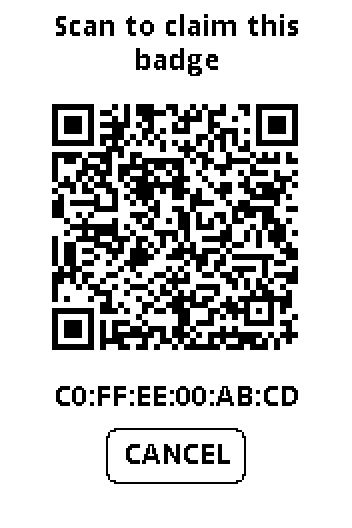
- Peter, on the badge: Setup › System › Join organisation. The badge shows a QR code with "Scan to claim this badge" for five minutes.
- Anna opens Claim a badge in CDM on her phone or PC and clicks Scan the badge's QR code; she signs in if she needs to. She can also use Add a badge in the Badge console, with the PC's camera, a photo of the code or the pasted link.
- Anna picks the organisation (Acme) and clicks Claim for Acme. CDM sends the claim to the Acme PC that heard the badge most recently, in this example Peter's: "Sent to the PC that last heard this badge. When the badge shows a code, type it here."
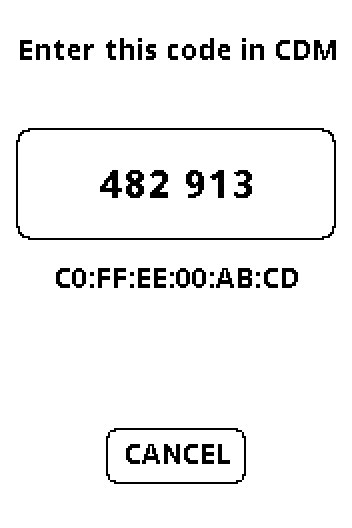
- The badge shows "Enter this code in CDM" and a six-digit code. Anna types it in Code on the badge and clicks Confirm code. The code proves that the badge she is claiming is the one Peter is holding, and that nothing in between has swapped it.
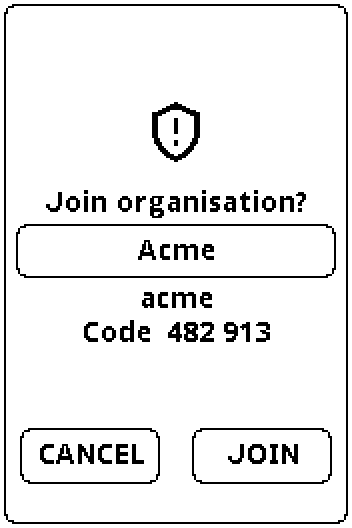
- The badge asks "Join organisation?" and shows Acme and the same code. Peter checks both and presses JOIN.
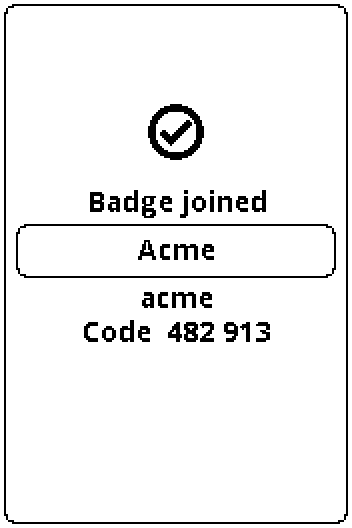
- The badge shows "Badge joined". CDM shows "The badge now belongs to Acme." and lists it under Badges claimed by Acme.
sequenceDiagram
    actor Peter as Peter (badge holder)
    participant Badge
    participant PC as Peter's PC (agent + bridge)
    participant CDM
    actor Anna as Anna (admin)
    Peter->>Badge: Setup › System › Join organisation
    Badge-->>Anna: QR code
    Anna->>CDM: Claim for Acme
    CDM->>PC: claim, for the PC that last heard the badge
    PC->>Badge: claim request
    Badge-->>Peter: "Enter this code in CDM": 482 913
    Anna->>CDM: Confirm code 482 913
    CDM->>Badge: Acme's membership (through the PC)
    Badge-->>Peter: "Join organisation?" Acme · 482 913
    Peter->>Badge: JOIN
    Badge->>CDM: signed receipt (through the PC)
    CDM-->>Anna: "The badge now belongs to Acme."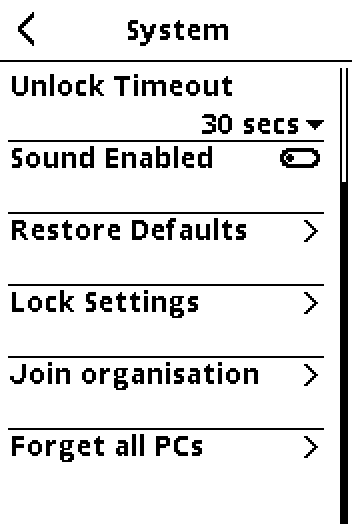
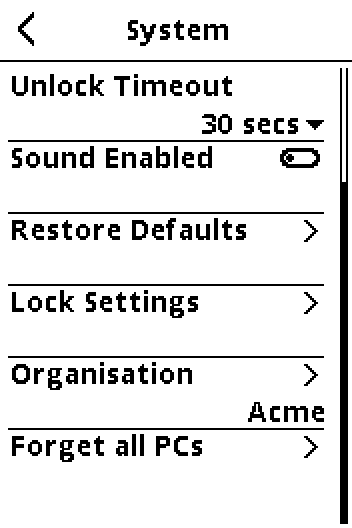
On a claimed badge, Setup › System › Organisation shows what the badge knows about its owner:
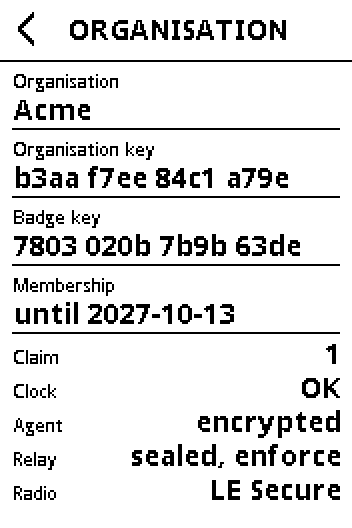
What the claim also writes to the badge: the organisation's policies as they are at that moment, and the time. When the claim is done, the badge accepts its organisation's commands only, and nobody can claim it again until it is released.
No Acme PC nearby?
If no Acme PC with an up-to-date agent has heard the badge in the last 15 minutes, CDM says so. Then either bring the badge next to such a PC, or claim it over Bluetooth from the browser. The claim stays open for five minutes.
Claim over Bluetooth, from the browser
The browser can carry the claim to the badge itself, with no Acme PC involved: useful for a new badge, a badge away from the office, or an admin who works from a phone. The claim is the same as above: the same code on the badge, the same JOIN, the same result in CDM. Only the messenger is different, and CDM lists the claim with Via PC browser.
- Peter, on the badge: Setup › System › Join organisation.
- Anna, in Claim a badge: scans the QR code, then clicks Claim over Bluetooth.
- The browser asks which device to connect to. The list shows only the badge whose QR code Anna scanned, even with other badges nearby: while its claim is open, the badge advertises a mark taken from that QR code. Anna picks it and clicks Pair (or Connect).
- From here as above: Anna types the code the badge shows, Peter presses JOIN. Anna keeps the page open until it says "The badge now belongs to Acme."; the browser then lets go of the badge.
What it needs:
- Chrome or Edge with Web Bluetooth: on Windows, macOS, ChromeOS and Android. Not Firefox, and not Safari or any browser on iPhone and iPad; there the button is not shown.
- Android: Bluetooth on, Location on, and Chrome allowed to find Nearby devices (Settings › Apps › Chrome › Permissions).
- The badge within a few metres, and not linked to a bridge at that moment: a badge holds one Bluetooth link at a time. If a bridge has it, the browser cannot connect; wait a minute, or take the badge away from the bridge.
- Badge firmware that supports it. A badge with older firmware is not listed.
Codes
The badge's code is typed into CDM, never the other way round. After five wrong codes the claim is over: start again from the badge. If Peter presses CANCEL, or leaves the question for a minute, the badge stays unclaimed.
Example: sign in with a claimed badge
The next morning Peter signs in to his PC with the badge, as he did before.
Nothing changes for Peter. He picks his tile on the Windows sign-in screen, or the tile connects his badge by itself, and he signs in with his PIN or fingerprint. Behind the tile:
- The agent opens an encrypted session with the badge, through the bridge.
- The agent hands the bridge a relay key for that session. The bridge needs it to pass the badge's sign-in traffic, and it can't do anything else with it.
- The sign-in (smartcard or Entra FIDO) runs over the encrypted link. The badge's tunnel icon is filled.
This adds about a second to the first connection. A reconnection to the same PC reuses the session.
If the link cannot be encrypted, what happens depends on the badge's policy:
- observe — the sign-in continues unencrypted, as before Badge Ownership, and the tunnel icon is outlined.
- enforce — the tile says "The Badge's secure link could not be set up" and the sign-in stops. An enforcing badge never falls back to an unencrypted link.
A PC of another organisation, or a bridge without Badge Ownership firmware, cannot set up the link for an Acme badge.
Choose a policy
The person who runs your CDM installation sets these for the organisation. A badge gets them when it is claimed. To change them later for a badge that is already claimed, send a policy command from the Badge console. The console shows the organisation's current choices as chips at the top, for example badges observe, USB and NFC open, older badges: allow, pairing without CDM: off.
| Policy | Choices | What it means for badge holders |
|---|---|---|
| Relay | observe (start here) · enforce | observe: the badge uses the encrypted link wherever it can and still answers unencrypted where it can't. enforce: the badge answers only over the encrypted link. Every bridge it meets needs Badge Ownership firmware, and every PC needs the agent and an organisation the badge belongs to. |
| USB and NFC | open · closed | closed: the badge also refuses FIDO and smartcard over a USB cable and over NFC. That leaves no fallback when a bridge is down; use it where cables and NFC readers are a risk. |
| Older badges | allow · refuse | What your agents do with a badge without Badge Ownership firmware. refuse: its tile says "This Badge needs a firmware update to sign in here" and it cannot sign in. |
| Pairing without CDM | off · this session only · remember | Whether a claimed badge may also pair with a PC your CDM does not manage. off is the default. This session only allows it until the PC disconnects; remember also lets the badge holder keep the pairing for a day or 30 days. |
Example: roll out enforce
Acme wants every badge to refuse unencrypted Bluetooth.
- Update first. Install agent 1.0.640 or later on every PC, and Badge Ownership firmware on every bridge, through CDM's usual update policies.
- Claim in observe. Claim all badges while the relay policy is observe. Nothing changes for anybody yet.
- Check. In the Badge console, click Ask the badge now on a few badges. Under Signed status, Relay endpoint confirmed should say yes: the badge has been using the encrypted link.
- Enforce badge by badge. For each badge, send Relay policy: enforce and confirm "Make this badge enforce its relay?". Or have the organisation switched to enforce, so that badges claimed from then on enforce straight away.
- Watch sign-ins. A badge that meets an old bridge now fails with "The Badge's secure link could not be set up". Update that bridge, or send Relay policy: observe to that badge to switch it back.
Warning
Do not enforce while old bridges are still in use where people sign in. An enforcing badge cannot sign in through them.
Older badges
Badges with older firmware never get claimed and sign in as before, unless your organisation chooses Older badges: refuse. They can be updated to Badge Ownership firmware at any time and then claimed.
Example: manage a badge from the Badge console
Anna wants to check Peter's badge and store a value on it.
Open Badge console from the user menu in CDM. It lists Claimed badges. A badge with something odd shows a warning, for example "its security clock is over an hour off".
- Anna selects Peter's badge. Signed status shows what the badge last reported about itself, signed by the badge: its state, its security clock and whether its relay endpoint is confirmed. Ask the badge now gets a fresh one.
- Under Send a command she picks a preset:
- Badge info and Read settings — read-only, so nothing on the badge changes.
- Set the badge clock to now — for a badge that lost power.
- Key-value write / read / delete — stores small values on the badge. A read's answer is sealed: only the organisation can open it, with Open in the console.
- Relay policy: … — changes the policy of this badge.
- Release the badge — see below.
- She picks how long the command stays valid (10 minutes up to 7 days) and clicks Sign and send. CDM signs it with the organisation's key.
- CDM gives the command to a PC whose agent can reach the badge. It runs the next time that PC talks to the badge, normally at the next sign-in. Switch on Connect now to have the PC reach the badge straight away. A signed-in user then has to enter their PIN again.
- The command shows done only when the badge has returned a receipt with its own signature, which CDM checks. refused: … says why the badge said no.
Some commands are marked critical: signed per session: release, security policy, backup and restore, key-value read and PUK. CDM signs each of them for one connection to the badge, so a recorded command cannot be played back later.
Example: release a badge
Peter leaves Acme. Anna gives his badge to Maria.
- In the Badge console, Anna selects Peter's badge, sends Release the badge and confirms "Release this badge?".
- The next time an Acme PC reaches the badge, the badge removes Acme's key and membership and signs a receipt. CDM revokes the badge and cancels its pending commands.
- The badge is unclaimed again: no tunnel icon, and Setup › System › Join organisation is back in its menu. Anna can claim it for Maria. Any other organisation could also claim it.
A factory reset started on the badge also unclaims it. Releasing or resetting also ends every pairing without CDM.
Note
If the badge released itself but the PC lost the receipt, the agent hands it to CDM the next time it meets the badge, and the release finishes then.
Pairing without CDM
Some PCs are not managed by your CDM: a PC at home, a stand-alone kiosk, a laptop outside the domain. Pairing gives such a PC the same encrypted link to a badge, without CDM and without an admin:
- The PC shows a six-digit code on its screen.
- The badge holder types the code on the badge itself. The code goes this way round because the badge holder is the person standing in front of that PC. Anyone who could merely see the badge's screen cannot pair.
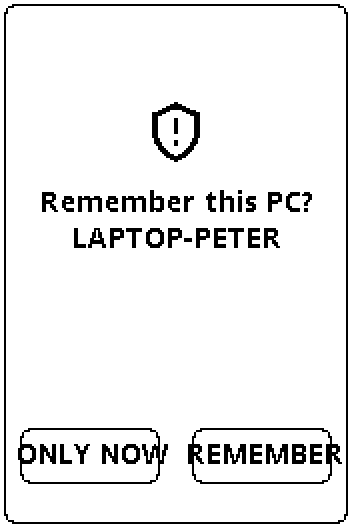
- The badge asks whether to remember the PC:
- ONLY NOW — the pairing lasts until the PC disconnects. Nothing is stored, and the next connection needs a new code.
- REMEMBER — then "For how long?": 1 DAY or 30 DAYS (the badge shows the end date). The PC keeps a ticket. Until it expires, the PC connects without a code.
When pairing is possible:
| The badge is… | Pairing on a PC without an organisation |
|---|---|
| not claimed | allowed, both ONLY NOW and REMEMBER |
| claimed, policy off (default) | not allowed: the PC connects the old, unencrypted way |
| claimed, policy this session only | allowed, ONLY NOW only (the badge does not ask) |
| claimed, policy remember | allowed, both |
A PC that belongs to an organisation does not pair. Its badges are claimed and trusted through CDM.
Example: pair from the sign-in screen
Peter works from home on his own laptop. It runs the Crayonic Agent without CDM, and Acme's policy allows pairing (remember).
- Peter picks his badge's tile on the Windows sign-in screen.
- The tile says "Enter 160 655 on your Badge to pair it with this PC".
- The badge opens a keypad titled "ENTER CODE", with the laptop's name above it. Peter types 160655.
- "Remember this PC?" — Peter chooses REMEMBER, then 30 DAYS.
- The tile carries on and Peter signs in as usual, over the encrypted link.
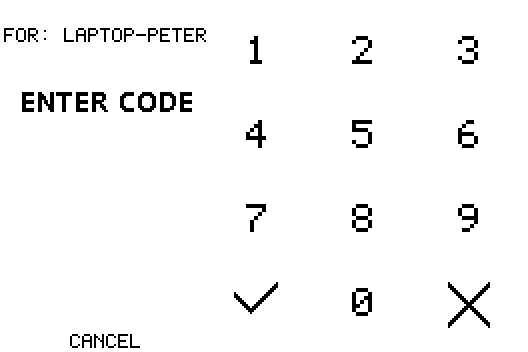
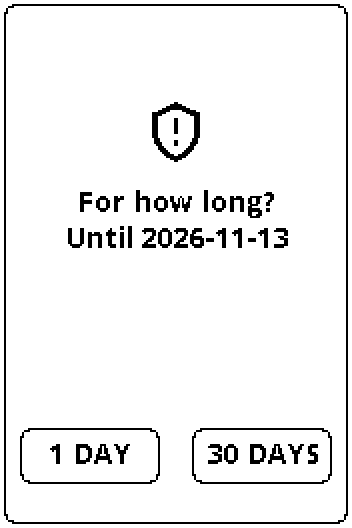
For the next 30 days, Peter's badge connects to this laptop without a code. After that, the tile shows a new code.
sequenceDiagram
    actor Peter
    participant Tile as Sign-in tile (laptop)
    participant Badge
    Peter->>Tile: picks his badge
    Tile-->>Peter: "Enter 160 655 on your Badge…"
    Peter->>Badge: types 160655
    Badge-->>Peter: "Remember this PC?"
    Peter->>Badge: REMEMBER · 30 DAYS
    Badge->>Tile: pairing done (ticket for 30 days)
    Tile-->>Peter: sign in as usual
Timing and wrong codes
The PC waits about a minute and a half for the code. A wrong code turns the keypad's title into "WRONG CODE"; three wrong codes end the pairing, and the badge then refuses pairing for a minute. Whenever a pairing ends without success -- declined on the badge, three wrong codes, or the badge's link dropped -- the PC stops at once and says why.
Example: pair from the settings window
An administrator prepares a kiosk PC before handing it out.
- Open the Crayonic Agent's settings window as an administrator (see Badge Sign-in Setup), and go to the Devices tab.
- Select the badge in the list and click Pair the selected badge with this PC.
- The status line says "Enter 168 749 on the badge". Type the code on the badge and choose as above. If the sign-in screen was already pairing the same badge, the settings window takes over; while it pairs, the sign-in tile for that badge says "This Badge is pairing in the settings window".
- The status line reports "The badge remembers this PC until 2026-11-13." or "Paired for this session only: the code is needed next time." The Devices tab lists the badge under Paired badges with its end date.
Forgetting a pairing
- On the PC — in the settings window, select the badge and click Forget its pairing. The PC deletes its ticket.
- On the badge — Setup › System › Forget all PCs ends every remembered pairing at once, including on PCs the badge holder no longer has, such as a lost laptop. The tickets those PCs keep stop working.
- Automatically — a remembered pairing ends on the date the badge holder chose (90 days at most). It also ends when the badge is claimed, released or factory reset.
Troubleshooting
| What you see | Why, and what to do |
|---|---|
| "Badge ownership is not switched on for this organisation yet." | Badge Ownership is not switched on for this organisation in CDM. Ask whoever runs your CDM installation. |
| "… has no badge key yet" | A CDM superadmin has to click Create badge key once. |
| "No PC in Acme with an up-to-date Crayonic agent has heard this badge recently." | Bring the badge next to a PC of the organisation that runs agent 1.0.640 or later, or use Claim over Bluetooth. |
| "The claim expired before the badge confirmed it." / "Five wrong codes: this claim is over." | Start again from the badge: Join organisation. |
| Claim over Bluetooth: the browser's list stays empty | The badge's claim is not open (open Join organisation on it; it closes after five minutes or on CANCEL), the badge is out of range, or Bluetooth is off. On Android, also check Location and Chrome's Nearby devices permission. |
| "The badge did not take the connection …" | A bridge holds the badge's Bluetooth link. Wait a minute and click Claim over Bluetooth again, or take the badge away from the bridge. |
| "This badge offers no claim over Bluetooth …" | The badge's claim page closed before the browser got there, or its firmware is too old for this. Open Join organisation again, or claim through an Acme PC. |
| No Claim over Bluetooth button | The browser has no Web Bluetooth (Firefox, Safari, any browser on iPhone or iPad). Use Chrome or Edge, or claim through an Acme PC. |
| The badge says "Could not join" | The claim was withdrawn or timed out before JOIN was pressed. Start again. |
| Tile: "The Badge's secure link could not be set up" | The badge enforces, and this PC or bridge could not set up the encrypted link. Usually a bridge without Badge Ownership firmware, an old agent, or a PC from a different organisation. |
| Tile: "This Badge needs a firmware update to sign in here" | An older badge, and the organisation refuses older badges. Update the badge's firmware. |
| The badge's tunnel icon is outlined | The badge is claimed but this link is not encrypted. That is allowed in observe. Check the bridge firmware and the agent version on that PC. |
| The badge's Organisation page shows Clock: needs time | The badge lost power. The next connection to an organisation PC sets the time. |
| A management tool other than the Badge console is refused by a claimed badge | That is the point: a claimed badge takes commands from its organisation's CDM only. Use the Badge console. |
| The sign-in tile never shows a pairing code | The PC belongs to an organisation, the badge's policy does not allow pairing, or the badge's firmware is too old. |
| "This Badge is pairing in the settings window" on the tile | An administrator is pairing that badge in the agent's settings window. Finish that pairing, or let it run out. |
| The pairing stops with "the badge's link dropped during the pairing" | The badge moved away or the bridge restarted. Pair again. |
| A remembered PC asks for a code again | The pairing expired or was forgotten on the badge (Forget all PCs) or on the PC. Pair again. |
Related
- Crayonic Device Manager — the console that claims and manages badges
- Crayonic Agent and Credential Provider — the sign-in tile and the encrypted session on each PC
- Badge Sign-in Setup — the agent's settings window, where pairing without CDM is also started
- Crayonic Bridge and Crayonic Badge